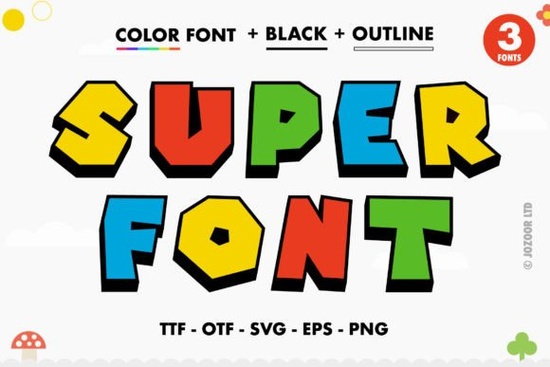
If you spend a lot of time working on sublimation shirts, sticker packs, or digital invitations, you know exactly how difficult it is to find typography that grabs attention without looking generic. That is why many creators are currently adding Super Font to their design library. It brings a unique combination of thickness and vibrant color that stands out instantly when placed on white backgrounds. Unlike standard monochrome letters, this tool introduces a fun aesthetic perfect for small business branding or personal hobby projects.
However, understanding the file type is crucial before downloading. This is primarily a color font utilizing OpenType-SVG technology rather than traditional black-and-white vectors. Knowing the distinction helps you avoid frustration during the installation process. While it creates beautiful results in graphic software, knowing where it fits ensures you get value for your purchase without wasting time trying to force it into incompatible tools.
Is This Compatible With My Cutting Machine?
One of the most common questions we hear involves whether this font works on all electronic cutting machines like Cricut. To be completely transparent, the current version does not offer separate TTF or OTF files that cutters require for precise blade movement. Because it relies on SVG layers for its coloring, it is fully supported by Silhouette, Adobe Illustrator, Photoshop, and Inkscape. These programs render the colored swashes and shapes directly from the software interface.
Cutting machines often rely on paths found within vector outlines, which differ from how layered color fonts are rendered. If you try to use this specific file on a Cricut without converting the colors manually, you may find that the colors do not translate correctly during the upload phase. Therefore, it is best suited for printers who handle digital printing or those who use Silhouette Studio for layer-based coloring. Always verify your software capabilities before starting your project to prevent wasted materials.
Why PUA Encoding Makes Workflows Easier
The product uses PUA encoding, which stands for Private Use Area. In simple terms, this allows users to map special characters and swash variations to specific keystrokes. When you are designing, this feature means you can access additional decorative elements and alternate shapes without hunting through complicated menus or finding new files every time you need a variation.
For example, if you are creating a greeting card, you might want a specific flourish at the end of a sentence. With PUA encoding enabled, hitting the right key combination adds the swirl immediately. This speed boosts productivity significantly, allowing you to focus on the layout rather than troubleshooting font settings. It is a subtle technical feature that saves hours of manual editing over time.
Finding the Right Vibe for Seasonal Designs
While this specific typeface offers a strong modern look, sometimes you need something different depending on the season. For instance, summer sales often call for bubblier shapes, while academic needs require sharp clarity. You might already have great options for general use, but exploring themed collections can help round out your portfolio. We recommend browsing back-to-school fonts colorful fonts to see how playful themes interact with educational content. This is especially useful for teachers making classroom labels or parents crafting lunchbox notes.
If you enjoy combining multiple styles, having a backup list of complementary typefaces is smart. When you run low on ideas for headers, checking out super fonts colorful fonts gives you immediate access to a wide range of options. This keeps your workflow consistent without changing your visual identity too drastically. Consistency helps customers recognize your brand across different marketing materials, from Instagram stories to physical packaging.
Installation And Usage Tips
To get the best results, follow a few standard steps for installation. First, download the archive from the marketplace and extract the zip folder to find the .ttf or .otf files if available alongside the color variants. Next, install the package into your operating system by selecting all files and choosing the install option. Once finished, restart your design software like Inkscape or Adobe Illustrator to ensure the font appears in the menu list.
When typing out your text, switch your text mode to Outline or Path if you intend to send the file to a printer. Remember that because it is a color font, the fill colors are embedded within the glyph definitions. If you are preparing a file for Print on Demand services that require flat vector data, make sure to convert the color layers carefully to preserve the integrity of the image.
If you need a reliable source for this style, we suggest verifying the Super Font listing to confirm compatibility with your current software version. Licensing agreements vary depending on personal or commercial use, so please read the details on the page before selling your printed goods.
Practical Checklist Before You Design
- Verify Software: Ensure Photoshop, Illustrator, Silhouette, or Inkscape is installed.
- Check File Type: Confirm you are opening the SVG or Color variant, not the outline-only version.
- Test Print: Always print a sample sheet on regular paper to check alignment and color accuracy.
- Licenses: Read the specific license agreement if selling items created with this typeface.
- Backup Plan: Have a fallback monochrome version ready if the printer cannot handle color fonts.
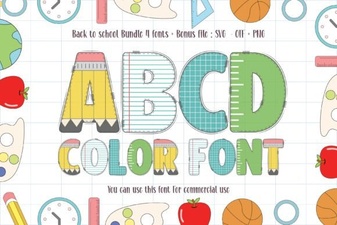 Creative Font Ideas for Back to School Projects
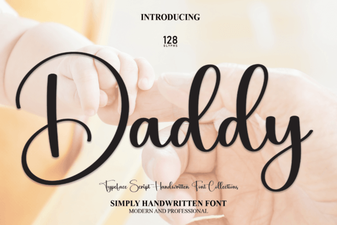 The Daddy Font Family for Creative Design Projects
 Rabbit Hole Font: a Typographic Exploration Guide
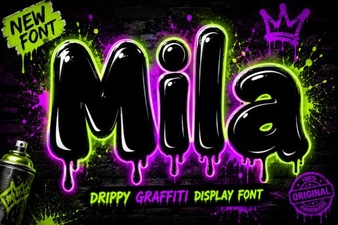 Unlock Creativity with Mila Font Designs
 Harness Vintage Varsity Font Design
 A Free & Fun Crayon Font for Creative Projects